Methodologies
Methodologies are optional for use within Canopy. However, Methodologies are there if your team needs them.
Why might you want to use Methodologies? In most environments, Methodologies are used for three main use cases (but you might have others!):
To help ensure a minimum baseline of test coverage is achieved by all testers.
To help guide junior testers.
To provide test coverage feedback to clients, either using custom build methodologies or using industry frameworks, such as the https://owasp.org/asvs.
You can add one or more methodologies to a phase. This allows you to mix different methodologies as required.
Access Control
Any user who has at least write access to a phase can add/remove methodologies.
Adding a Methodology
Access the phase that you want to use a methodology on. Click on the Methodologies tab in the phase view:
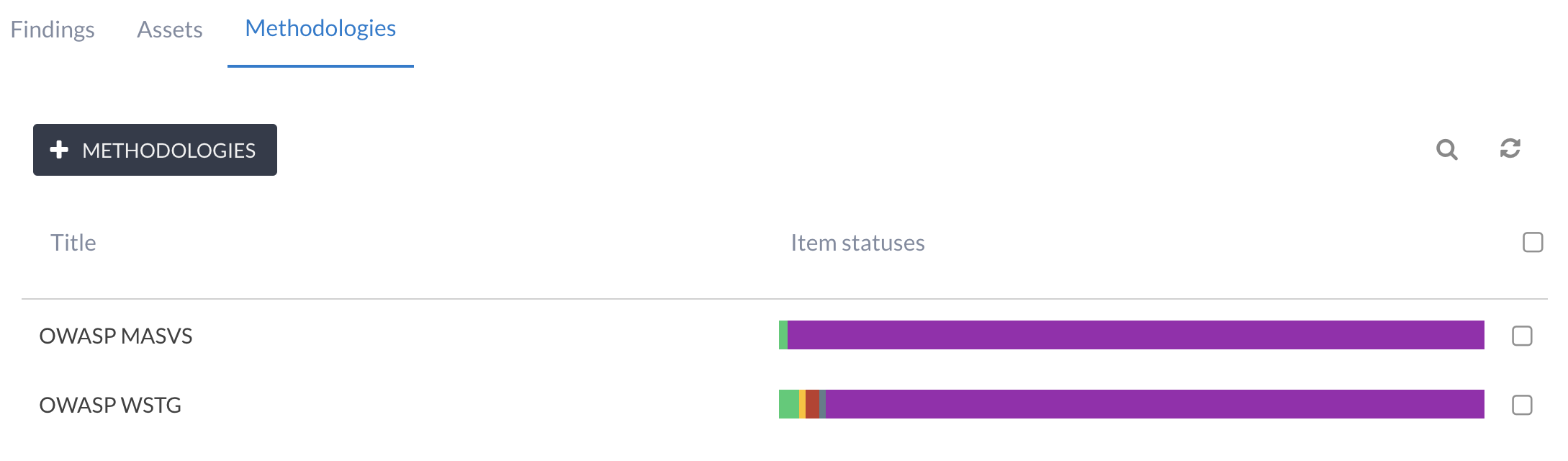
Click on the + Methodology button. This will present you with a list of Methodologies to choose from:
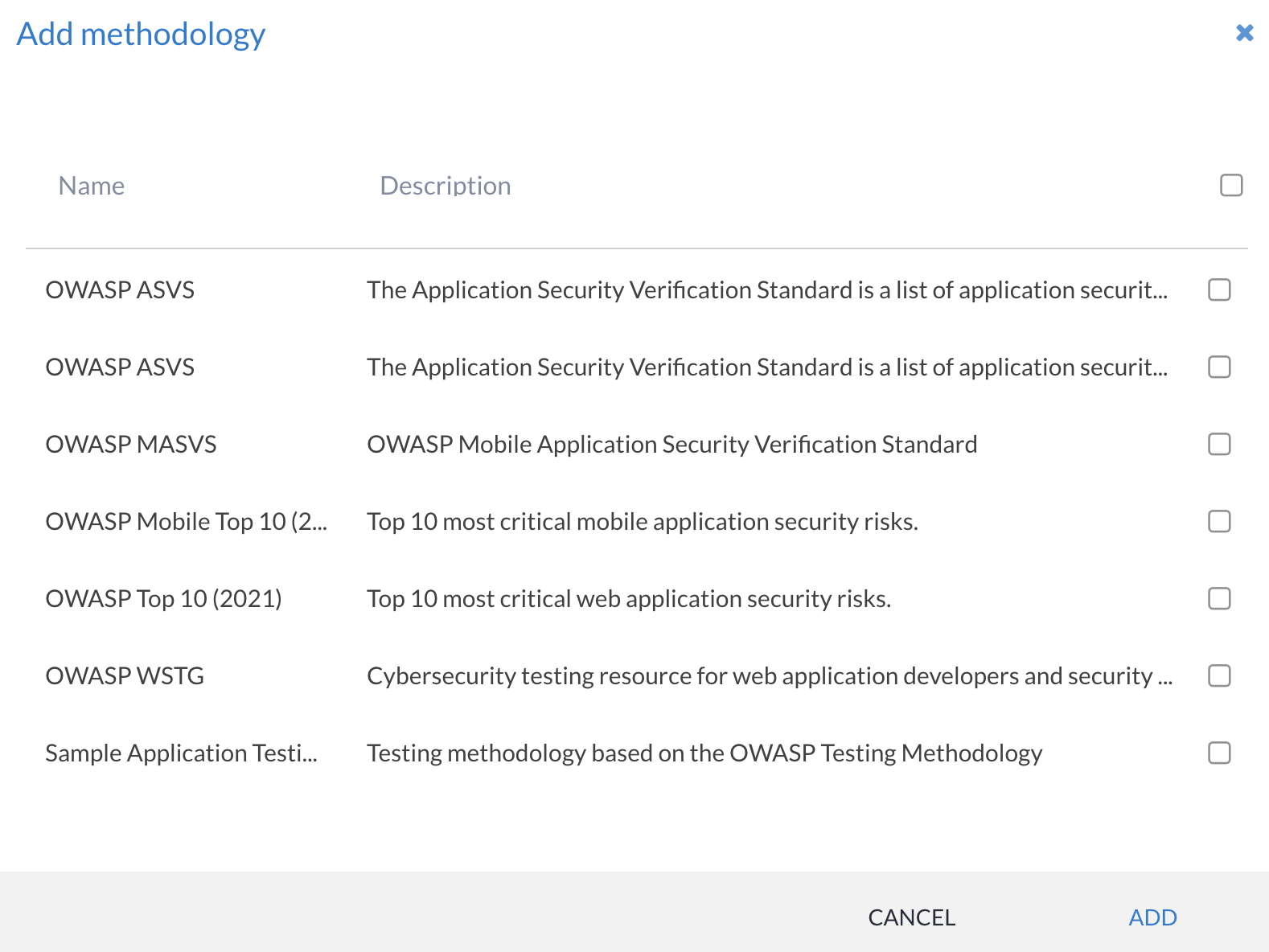
You can select one or more, and add these to the phase. The list of methodologies associated with a phase will be updated.
Progressing through a Methodology
The main goal of the methodology is to indicate whether or not a given methodology item (or test case) has been checked. Additional information can also provide on how to perform the required checks have been processed.
Once you have completed a methodology item, you can set its status. The following statuses are supported:
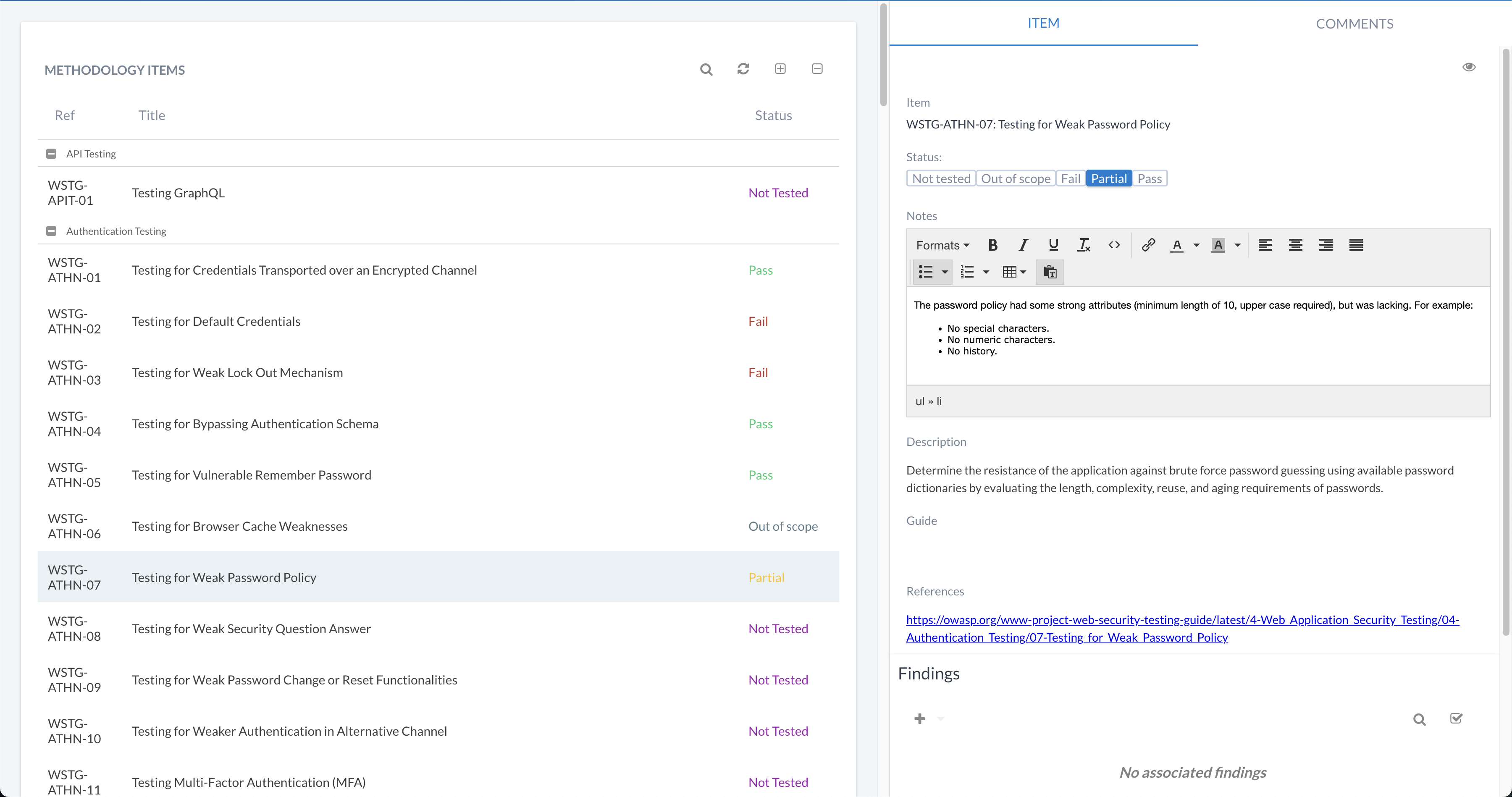
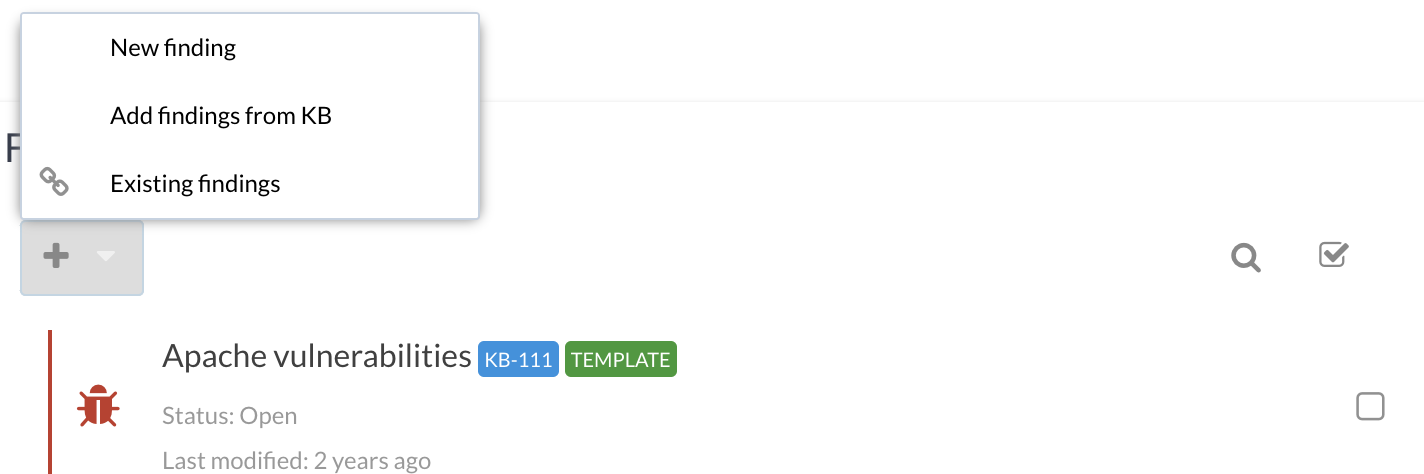
It is also possible to link a methodology item to a finding (either an existing finding or you can create a new finding from the Methodology view). You can do this via the following section:
Similar functionality is available for linking methodology items to assets. This can be useful if you need to track completeness across multiple assets, especially if feedback is required.
Adding and Removing Methodology Items
A methodology is seeded from a template, but its items are not fixed. You can add a test case the template does not cover, or remove one that does not apply to the engagement. As with adding a methodology, write access to the phase is required.
A new item is appended to the end of the methodology and starts with the first status configured for that methodology.
Warning
Removing an item also removes its notes, custom field values, and its links to findings and assets. This cannot be undone.
Exporting
The methodology and all of its items can be exported for use outside Canopy, whether or not any results have been recorded yet.
Open the methodology, then click the menu (three vertical dots) on the Methodology Items toolbar. XLSX, CSV and JSON formats are available.
Canopy generates the workbook internally by default. To customise it, save the
default template with canopy-manage create_default_xlsx_templates and point
the METHODOLOGY_XLSX_EXPORT_TEMPLATE_PATH setting at its location. See
XLSX tool import.
Importing XLSX
An exported XLSX workbook can be brought back into Canopy, either to record
results against the methodology it came from, or to set up a methodology on
another phase. Both need the phase-content-edit permission on the target
phase, granted by the Write workflow role. See
Roles and permissions.
Everything is matched on a UUID cell, on the Methodology sheet and on every item row alike, and the same rule applies to each:
a UUID that matches is updated;
a UUID that matches nothing is skipped, and the rest of the file is still imported;
a blank UUID adds a new record.
So the UUID column is what makes an import safe to repeat: leave it untouched and the same file can be imported as often as you like without duplicating anything. Nothing is ever removed either – an item with no row in the spreadsheet is left exactly as it was, so deleting a row does not delete the item. The one exception is the Assets column, which names the assets an item is linked to rather than adding to them: a cell naming at least one asset of the phase replaces that item’s links.
To record results, open the methodology and click Import methodology (XLSX) on the Methodology Items toolbar. The Methodology sheet updates the methodology’s own settings where its UUID cell identifies it, and is ignored where it identifies anything else.
To set up a methodology on another phase, clear every UUID the workbook carries, then click Import Methodology (XLSX) on that phase’s Methodologies list:
the UUID cell of the Methodology sheet, because the sheet names what the whole import applies to: a workbook naming a methodology that is not on the phase is rejected rather than skipped;
the UUID column of the Methodology Items sheet, because its rows still identify the items they were exported from, and a row matching nothing on the new methodology is skipped. Clearing the column carries every item over, clearing one cell carries that one item.
The Methodology sheet’s remaining cells name the new methodology and carry its description, status choices, categories and enabled fields. It is not linked to a Methodology Template, so it cannot later be resynced from one.
Note
A workbook imported with its UUID cells left as exported is rejected with “The spreadsheet describes the methodology …, which is not on this phase”. Nothing is recorded until the cells are cleared.
Status choices and categories are only ever added to, because dropping a status the items still hold, or a category still grouping them, would leave them stranded. A methodology can be renamed by an import, since it is matched on its UUID rather than on its name.
Note
An empty cell records nothing, so a partially filled spreadsheet leaves every value it does not fill alone. To clear a recorded value, edit the item in Canopy.
Note
Images are exported as “Images are only available in Canopy.” because a spreadsheet cannot carry them. A cell still holding that line is skipped, so a round trip keeps the images it could not export.
Every status must be one of the methodology’s status choices, and every row adding an item must name it. If either is not the case the whole import is rejected and nothing is changed, so an import either applies in full or not at all. A column matching no methodology item field, built-in or custom, is ignored.
Note
The Findings and Order columns are never imported: finding links are owned by the Knowledge Base auto-fail flow, and an added item is appended after the recorded ones. An added item is not linked to a Methodology Template item either, so the auto-fail flow does not reach it.
Importing JSON
An exported JSON document is brought back into Canopy by clicking Import
Methodology (JSON), either on a phase’s Methodologies list or on the
Methodology Items toolbar of a methodology. Both need the
phase-content-edit permission on the target phase, and both do the same
thing: the document’s own uuid, not the page it is uploaded from, says what
the import applies to.
A document carrying the uuid of a methodology on the target phase updates it. Its items are matched on the uuid the export wrote:
a uuid that matches an item of that methodology updates the item;
a uuid that matches nothing is skipped, and the rest of the document is still imported;
an item with no uuid is added, appended after the recorded items.
Every value the document carries is written, the content fields included, so an exported document can be edited and imported back to correct an item’s name, reference or guide as well as its results. The methodology’s own name and description are written too; its status choices and enabled fields are not. Nothing is ever removed: an item the document omits is left as it was, an item’s recorded order is kept, and asset links are only ever added.
Note
A document naming a methodology that is not on the target phase is rejected with “The document describes the methodology …, which is not on this phase”, and nothing is recorded. Remove the uuid to import it as a new methodology instead.
A document carrying no methodology uuid records a new methodology on the phase. Every item uuid is then ignored and fresh ones are minted, so the same document can be imported onto as many phases as needed. A methodology recorded this way is not linked to a Methodology Template, so it cannot later be resynced from one.
Note
A blank or absent value records nothing, so a partly filled document leaves every value it does not fill alone. To clear a recorded value, edit the item in Canopy.
Note
Images are exported as “Images are only available in Canopy.” because a document cannot carry them. A value still holding that line is skipped, so an unedited document can be imported straight back without replacing an image with that text.
Every status must be one of the methodology’s status choices, and every added item must be named. If either is not the case the whole import is rejected and nothing is changed, so an import either applies in full or not at all.
Anything the document names that does not exist here is skipped rather than rejected, and the rest of the import still applies: an asset that is not on the target phase, a custom field that is unknown or disabled, and an entry in enabled_fields that names no optional item field. The findings a document lists are always ignored – finding links are owned by the Knowledge Base auto-fail flow.
Note
categories is recomputed from the categories of the items, so a category no item uses is dropped and one an item introduces is added. status_choices and enabled_fields are never narrowed by an import, because dropping a status the items still hold, or a field they still fill, would leave them stranded.
Additional capabilities
Methodology items can be linked to Finding KB entries within the Methodology Template. For further information, see: Methodology templates.
Note
Once this linking is set up, findings added will automatically trigger the methodology item to the Fail state. This happens during both manual Finding KB addition to a phase, and during tool importing.